In Zulu, fulfiling a purchase order requires created a delivery, that can then be fulfiled into stock on hand.
Note: A purchase order can only be fulfilled via Product Deliveries as of 2026.
Fulfilling a Purchase Order:
Once you have created the Purchase Order on the screen here, you can proceed to fulfilling it by:
- Click the small dropdown arrow to the right of the "Edit" button on the appropriate Purchase order
- You should see 'Receive Products' as an option, click this
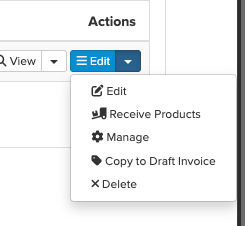
- When you click this, you will be then taken to the Delivery edit screen where you can confirm exactly what parts of the Purchase Order was delivered
- Once you have confirmed the delivery details, you can then scroll to the bottom and click 'Complete'
- You will now be taken to the fulfillment screen (see further down this page)
Fulfilling a Delivery:
If you have created a product delivery already, you can fulfil it by:
- From the Delivery list you can click 'Fulfilment' found under the dropdown box beside the 'edit' button:
- From the Delivery creation / edit page you can press 'Complete' to then go straight to the fulfilment page
Completing fulfilment of stock:
Once you complete a delivery you will see the fulfilment page below appear. You can also manually show this page by selecting 'Fulfilment' located on the Delivery index page, under the small dropdown arrow beside the associated delivery.
You will see a pop-up box appear with the fulfillment page...

Note: Product deliveries require complete fulfillment and cannot be partially fulfilled unlike other document types.
Fulfilling each line...
Firstly, depending on your Zulu configuration, you will have certain options.
If you use Location Zones: Then you will see buttons appear on EACH line that are labelled either 'Batch Source' for products which are batchable.
If you use Locations: Then you will likely only have to select at the top of the page what location the product is being received into. Because the location is a whole, it does not need to be set line by line. From this point, you don't actually have to do anything further - you can select the receiving location of the stock then click 'Save & Process'.
If you have batchable products in your order / delivery:
You will need to regardless of whether you use Locations or Location Zones, need to define WHAT batch (existing or new) will receive the stock.
If you're using location zones and/or batch-able products, you will have these options...
Clicking on "Zone Source"Within this window, you can enter a quantity of stock to allocate to each Location Zone. You must allocate the exact number of units defined on the line that is being fulfilled. You can split this across multiple location zones.
| Clicking on "Batch Source"Within this window, you can create a NEW batch at the top by defining the fields required. And optionally a manufacture and expiry date.Alternatively (depending on your settings), you can also type in the quantity of stock to allocate to each batch within the current Zones / Locations available. Stock must already exist in this location zones to be able to receive stock into them.  |

Once complete, you can click 'Save Selection' to complete the allocation.
Once you have allocated the line(s) in the order / delivery you're fulfilling, press the 'Save & Process' button.
Once ALL lines are fully fullfilled, the status will then be 'Fulfilled'.
Was this article helpful?
That’s Great!
Thank you for your feedback
Sorry! We couldn't be helpful
Thank you for your feedback
Feedback sent
We appreciate your effort and will try to fix the article